SnagIt 8
Windows can capture a screen image all by itself (Alt-PrtScn), so why would anyone need to buy a program that captures screen images? That's a fair question and there are lots of good answers. The best answer for me is that using the built-in screen capture utility takes too much work.
I show a lot of screen captures on the Technology Corner website -- usually these are just a dialog box or part of a screen to show how something works. I could get these images with the built-in screen capture function, but then I would have to put the image in an editor and crop it. That's no big deal with a single image, but some reviews have 20 screen captures.
I've been using SnagIt for a long time. More than a decade, I'm certain, and can't imagine being without it. Capturing an individual window, dialog box, menu, or any area of the screen is quick and easy.
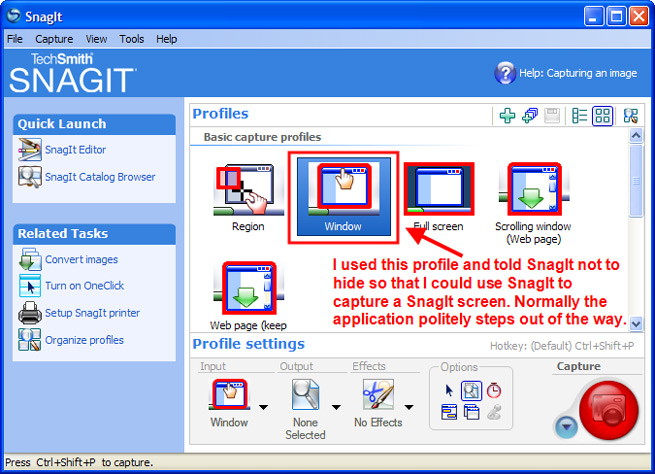
SnagIt also comes with a built-in editor that allows the user to add boxes, arrows, and text to the resulting image. The previous version did this, but version 8 allows me to fix an image if I make a mistake. That's a new feature and that feature alone may be worth the price of the upgrade.
Other new features include the ability to save a Web page with hyperlinks, the ability to create a Flash file from a screen capture and add a clickable hot-spot, and a new user interface that's a bit daunting at first to those of us who have been using the standard ("classic"?) interface for years. If you decide you like the old interface better, you can tell SnagIt to mimic that interface.
SnagIt also include the ability to capture video. It's not as powerful as Camtasia, SnagIt's sibling, but you can still record a sequence of events and include audio.
Overall: How does TechSmith keep making this product better?

Every time a new version of SnagIt comes out, I say that it can't get any better than this. That's the case this time, too. New features make the application both more powerful and easier to use, a combination that's not often seen. For more information, visit the TechSmith website.
Changing the items on your (computer's) menu
Listener Mark Young wanted to change the way his computer's Start Menu works.
"I have XP Home and have added some software. Now when I go to start
then all programs I have 2 columns it adds the listing of the new
software to the bottom of the second column and you can barely see it.
I can't figure out how to add another column. Any help would be
appreciated." Answering the question gave me an opportunity to show off with SnagIt, too.
You can't add another column; Windows takes care of that. It sounds like you're using the new Windows XP interface, which I detest. I use the "classic" design with small icons, but either interface will allow you to move things around.
All applications install in "Programs", but they don't have to stay there.
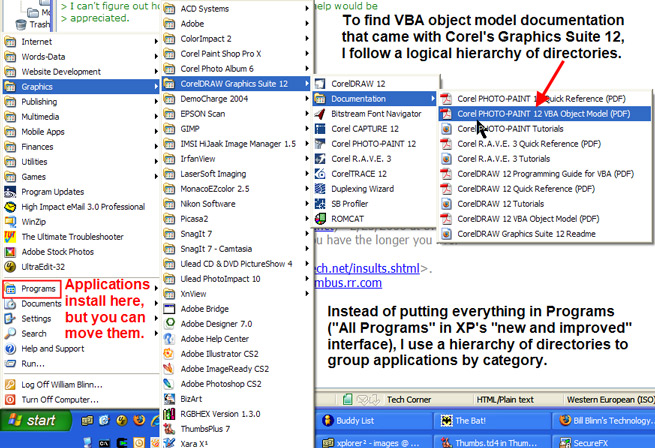
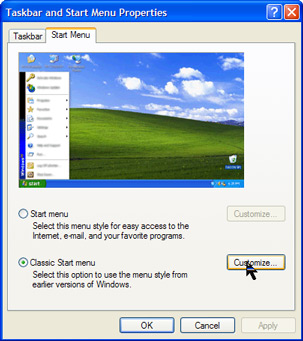 To make changes (and this may vary slightly with XP Home and with the "new and improved" interface, right-click in any blank area of the Task Bar and choose Properties. Click the Start Menu tab and choose Customize. Based on your description, I suspect that the top button will be selected on your machine, so you'll click the customize button at the top (the one that's grayed out here). There are implications beyond just how the menu works, so don't change to the classic view just because that's what I show here. To make changes (and this may vary slightly with XP Home and with the "new and improved" interface, right-click in any blank area of the Task Bar and choose Properties. Click the Start Menu tab and choose Customize. Based on your description, I suspect that the top button will be selected on your machine, so you'll click the customize button at the top (the one that's grayed out here). There are implications beyond just how the menu works, so don't change to the classic view just because that's what I show here.
Choose the Advanced tab and make sure "Enable dragging and dropping" is selected.

To create a new directory where you'll put applications, right-click Programs on the Start Menu and choose Explore.
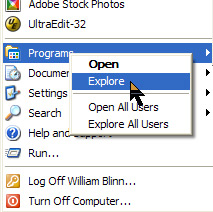
This opens the Windows Explorer in the Programs directory. This is a dangerous area. Do not delete any files or move anything unless you are certain that you know what the implications are. Right-click in the right side of the explorer and choose New Folder. Give the folder a name ("Financial Applications" for example). Then close the Explorer.
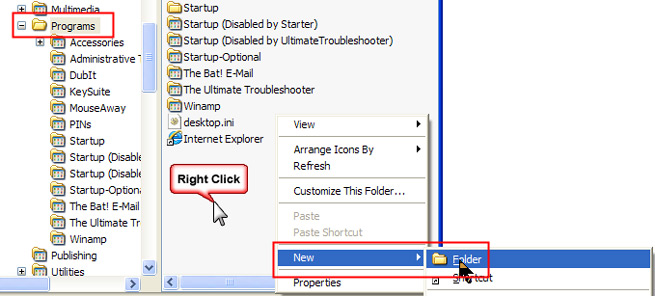
You'll now see the new directory on your menu under All Programs.
Find an application you want to put in the new slot on the menu. Click and drag that application's shortcut to the location where you want it. You will have to allow the mouse to hover long enough that Windows notices it and opens each subsequent level (or you can tap the spacebar to do it immediately). When the menu item is where you want it (see the heavy black bar below) release the mouse and the shortcut will drop into the proper slot on the menu.
You may get a warning about the change affecting all users of this computer. This means that the change you are making will be seen on other users' menus.
The program will now be in the new menu slot.
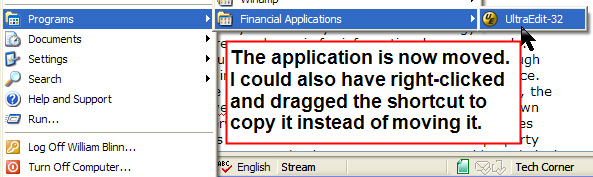
You can do these same kinds of things while in the Explorer (earlier step) but it's easier to become confused and drop a shortcut where you don't want it. Doing it this way is slower but safer.
Nerdly News
New version of Opera is out in beta
Late this week, Opera Software announced the public beta of Opera 9, which includes widgets. The Opera 9 beta also features support for BitTorrent, a popular file downloading technology, in addition to a content blocker and thumbnail previews of tabbed sites.
Opera's CEO, Jon S. von Tetzchner, says "Opera 9 brings powerful new features to enhance the Web browsing experience and empower Web 2.0 developers. Opera 9 unlocks new levels of productivity for the Internet ecosystem."
New features in version 9 include:
- Widgets for multimedia, newsfeeds, games, and more. Any Web developer can create widgets and share them, regardless of operating system.
- BitTorrent: Instead of having to use a separate BitTorrent application for downloading large files, users can now simply click a torrent file and start the download.
- Content blocker: Remove ads or images. You have the power to decide what you want to include. Right-click on a Web page and choose "Block content".
- Thumbnail preview: Opera has had tabbed viewing for the past several versions, but now you have the ability to view sites as thumbnail images.
- Site-specific preferences: The latest version of Opera allows you to specify whether you want to block pop-ups or cookies on a site-by-site bases.
Obtain the Opera 9 beta at http://www.opera.com.
Foil war profiteers and make a bundle yourself ("Yeah, right.")
A new twist on an old e-mail scam dupes recipients into believing they could receive millions from a bank account belonging to a victim of the Concorde air disaster. Guess what: Criminals then steal victims' identities and make a profit.
The e-mails claim to be from an accountant who has found a bank account containing about $50 million belonging to one of the disaster's victims, Christian Eich. Eich, a 57-year-old worker for BMW, died along with his wife and two children in the Air France Flight 4590 crash at Paris's Charles de Gaulle airport in 2000. The scammer states that unless claimed by the end of the quarter, the money will be used to buy weapons.
The e-mail includes links to news reports concerning Eich's death to give the scam more credibility and urges recipients to respond quickly (every scam wants a quick response) so that a quarter of the money can be transferred. The follow-up will be a request for personal details or an advance payment to cover "expenses".
Eich and his family were genuine victims of the air crash in Paris. Everything else about the e-mail is a canard, a minor variant of standard "419" scams. Other similar scams include messages claiming to come from a persecuted widow of the late Nigerian head of state, an associate of the massacred Nepalese royal family, and an African astronaut stranded on the Mir space station.
And if you are the victim of one of these scams, you deserve it.
|