
WTVN Radio • Columbus, Ohio • Sunday morning from 8 until 9
Who's in the corner?
Is this information useful? If so, consider
making a contribution, please.

|
|
WTVN Radio • Columbus, Ohio • Sunday morning from 8 until 9 |
|
| Home
• Previous
page Who's in the corner? |
Is this information useful? If so, consider |
|
| |
September 5, 2004 |
Random thought:
|
 |
|
Windows XP SP2I had enough time on the 28th (Saturday) to recover from a disaster, if one was to befall the computer I had selected for testing SP2. The process was surprisingly straightforward and was overall a success. I knew that the disk was in generally good shape -- not much fragmentation -- so I didn't run the defragmenter, but I did close every application that was running in the Tray. And I did wander past the management console on the notebook PC to make sure the Background Intelligent Transfer Service, Automatic Updates, and the Event Log were all on. I ran the Disk Cleanup utility to remove all but the most recent restore point and all browser cache files. I had downloaded the "network administrator" version of the update so that I would have everything needed on a CD. Last week, I recommended that anyone who's considering the installation of SP2 read Dan Wilson's article first. He describes some common-sense steps you should take before downloading and installing the service pack. Microsoft also has a wealth of information on the SP2 update page and you should read the Knowledgebase article that deals with programs that appear to stop working after the installation of SP2. The processMicrosoft spent a lot of time testing this service release. I've heard some people compare the change from XP with SP1 to XP with SP2 as being like the change from Windows 9x to Windows XP. I don't agree with that because there were far more fundamental changes between 9x and XP, but it's still a major upgrade. I ran the process on a Toshiba Tecra S1 (1.4GHz with 1GB of RAM and 30+ GB of free disk space.) Here's how it worked ...
The Security Center suggests that I turn on automatic updates, but I haven't, I don't, and I won't. I like to be able to see what it is that the automatic update process wants to install and then give it permission on my schedule. The Security Center's message about my antivirus program (Grisoft's AVG) was correct: The definitions needed to be updated and -- on the notebook I'm still running version 6 instead of the newer version 7. Once I update the virus definitions, though, the Security Center gives me a green light. Dead applications? So far, I've found none. Most of the applications Microsoft knows will have problems with SP2 are old (often 2 or 3 versions back) and most of the troublesome applications are communications programs (telnet, ftp, and the like). Microsoft has a list of applications with known problems. You'll find it here. Later that same day ...
My recommendation nowEarlier, I recommended waiting to see how many serious problems might emerge. I still recommend caution, but installing SP2 is as trouble free as Microsoft could make it. Whenever a major modification is made to the operating system, there is a significant opportunity for disaster to strike. It's not unlike conducting simultaneous heart and brain surgery while attempting to calculate the trajectory of a rocket to Pluto. That is to say it's both rocket science and brain surgery. Before you even think about installing the patch, be certain that you have a verified good backup. A reasonably recent computer with applications that are current has an excellent chance of success. An aging bargain-basement machine with a fragmented disk, out-of-spec hardware, and half a dozen active viruses has a poor chance of success. But the installation can fail on any machine, no matter how good. There is a risk, no question. The risk must be considered in light of the fact that SP2 offers security features that will benefit most users. Unfortunately, it's exactly the people who know the least about fixing these kinds of problems, and the ones who will know the least about preparing for the unexpected, who need SP2 the most. Computer geeks already have firewalls, the latest security patches, and safe computing practices. They could continue for quite some time without SP2. What's new
Last week, I talked about PopUpCheck.com and explained how I had used it to test the pop-up blocker that's part of Mozilla. This week, I tested the updated version of Internet Explorer and the results were essentially identical to what I experienced with Mozilla:
I was surprised to see that SP2 communicated with both version 6 and version 7 of Grisoft's AVG antivirus program, too. That's the long, roundabout way of saying that I am now recommending the installation of SP2, but with caution. Discouraging people from installing SP2 is like deciding not to call the fire department to put out a fire because of a concern that they'll get water on the rug. Now that Windows XP has its own firewall, I don't need one ... ... ... Right? Right???Sorry, but wrong. Microsoft has added a firewall to Windows XP and it is turned on by default, but it's really only half a firewall. The Microsoft product can block malicious inbound traffic, but does nothing about outbound traffic. What's wrong with that? The easiest example I can suggest is this: Let's say somebody sends you an e-mail with a worm as an attachment and it's sufficiently new that it sneaks in under your antivirus program. It installs itself quietly and then tries to contact the author by sending a signal. Because that's an outbound attempt to open a connection, Microsoft's half-a-firewall won't see it. And that's why I'll continue to use ZoneAlarm even though I've installed the Windows XP service pack 2. ZoneAlarm also keeps an eye on any application that attempts to use the Internet. That means that you'll see a lot of "Is this program OK?" messages after you install the program, but you can tell ZoneAlarm to remember your decision. After the first day or so, the only time ZoneAlarm will ask for your advice is when you use a new program that needs to access the Internet or when one of the automatic update programs that many software publishers use tries to check for an update. Or when something dangerous tries to check in with its creator. ZoneAlarm's approach makes a little extra work for the user, but it also makes the computer more secure -- if the user is cautious. The user who routinely clicks "OK" without investigating is just asking for trouble. ZoneAlarm is smart enough to know about some applications and will recommend allowing access (if it's a known good program) or denying access (if it's known to be malware). In some cases, the application that's trying to use the Internet may be unknown to ZoneAlarm. What then? If ZoneAlarm doesn't know about the program, it could be malware. Or it could just be a new application that isn't in ZoneAlarm's database yet. If you've just installed a new application and the program that's trying to use the Internet is in that application's directory, you'll probably want to approve it. Or you can choose to play it safe and deny access, but tell ZoneAlarm not to remember your decision so that it will ask you the next time the program tries to use the Internet. By denying access to an application, you can determine whether it's an important and worthwhile program (something you want to work stops working) or whether it's an application you don't care about (nothing changes). My home network sits behind a hardware firewall, so it stands between me and the bad guys, but I still use the ZoneAlarm software firewall -- mostly because of its ability to watch outbound traffic. Earlier versions of the program could cause conflicts with hardware firewalls and the first version of applications such as Apple's Itunes for Windows didn't work if a firewall was in the way. Those problems are no longer considerations. In fact, all you need to do is decide which version of ZoneAlarm you need:
Most of the components work well, but I have disabled the antivirus component because it consumes more than its fair share of system resources: A 2.5GHz machine with 1GB of RAM was noticeably slower with the antivirus program running. This isn't unique to the Computer Associates antivirus program (McAfee). I've said similar things about Norton Antivirus from Symantec. When I disabled the ZoneAlarm antivirus and re-installed Grisoft's AVG Antivirus, the computer resumed its usual operating speed. (Information about AVG is here.) If you use one of the popular IM services, consider either the security suite or the separate IM Secure program (IM Secure is free; IM Secure Pro is $20). And if you need any of the additional features in the Security Suite, it's a good buy at $60 ("normal" "list" price is $70). Actually all prices are 1 penny less than what I've stated, but $x.99 prices make me crazy.
For more information, see the ZoneLabs website. Nerdly NewsWinZip updateThe WinZip 9.0 Service Release 1 (SR-1) is now available. This is a maintenance release of WinZip 9.0 containing important security-related fixes and improvements to WinZip. There is also a service release for the WinZip Command Line Support Add-On. As usual, the update is free to any registered user of any version of WinZip. WinZip 9.0 SR-1 makes several "general internal improvements" and also addresses some security and reliability problems -- specifically potential buffer overflows that existed in previous versions of WinZip. The final version of SR-1 differs little from the beta I noted several weeks ago. The main visible change in WinZip 9.0 SR-1 is that WinZip now displays caution messages in some situations, such as when a user double-clicks on a EXE file compressed within a Zip file, to warn that the compressed file is of a file type that could potentially contain a virus. WinZip users who frequently need to work with the file types involved can turn these caution messages off. You'll find the new version on the WinZip website. Airlines and the InternetIf you had any question about how you'll be purchasing airline tickets in the future, American Airlines had just made the picture a little clearer. The airline announced on Friday that American Airlines and American Eagle will implement a $5 service fee for tickets purchased through their US reservations centers. The fee is double for tickets purchased at US airports. The announcement noted that "AA.com continues to offer self-booking and ticketing options with no fee" and of course the service fees "will be waived for AAdvantage Executive Platinum members and AAirpass customers." The change is effective Monday, September 6 "to help us continue to offer high value and effectively compete in a fiercely competitive marketplace." The fee is non-refundable and applies "per ticket" whether travel is one-way or roundtrip -- and it will also apply to tickets redeemed as AAdvantage program awards. Let us know what you think about this program! Write to: |
|||||||||||||||
|
|
Privacy Guarantee:I HATE SPAM and will not sell, rent, loan, auction, trade, or do anything else with your e-mail address. Period.
|
This is the only ad you'll ever see on this site. It's for my website host, BlueHost in Orem, Utah. Over the past several years, they have proven to be honest, reliable, and progressive. If you need to host a website, please click the banner below to see what BlueHost has to offer. As if you didn't already get enough weather on the radio! Annoying legal disclaimer
[an error occurred while processing this directive] |
||
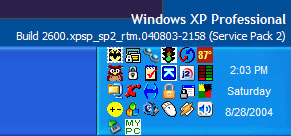 I decided to give the SP2 CD a chance to blow up the desktop machine. The process went well there, too. The crash-on-restart problem didn't occur and I quickly saw the new version/build information at the lower right corner of the screen.
 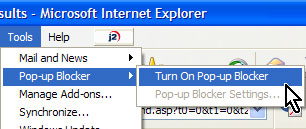 One of the most welcome additions, for people who use Internet Explorer, is a pop-up blocker. Microsoft is uncommonly late to the party with this, but what the offer with this update seems to work well. It's turned on by default. You can check by visiting the Tools menu and turning it on if it happens to be off.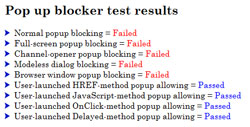

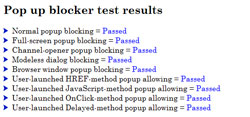
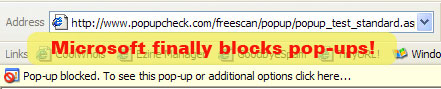 Whenever IE blocks a pop-up, it plays a quiet sound (you can turn it off) and displays a message that tells you a pop-up has been blocked. Why? Because you may be on a website that makes legitimate use of pop-ups and you may not want them blocked. If that's the case, you can turn off the pop-up blocker, change the overall setting for how pop-ups are treated, or visit the pop-up control panel and add the site to the list of sites for which you want to allow pop-ups.
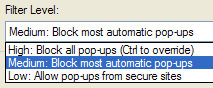 The pop-up blocker offers 3 overall levels: One that allows all pop-ups from secure sites, one that blocks most unrequested pop-ups, and one that blocks all pop-ups. The middle setting seems to do a good job and it differentiates between pop-ups that appear when the user clicks a link (a wanted pop-up) and those that some advertiser wants to put in your face. If you choose the "high" setting, you'll need to add a lot of URLs to the list of sites that are allowed to show pop-ups. For now, I'm sticking with the "medium" setting, which is also the default.
 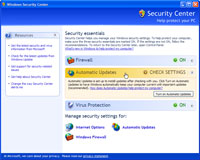 When you visit the Security Center (you'll find it in the Control Panel), you may find that Microsoft would like you to turn on the Automatic Update function. I prefer to leave it as a semi-automatic function: Windows Update will automatically download any critical updates, but will then tell me that the files are available and ask for my permission to install them. To see a larger view, click the image at the left.
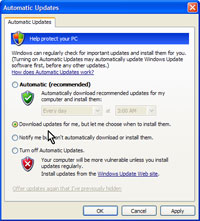 If you click the link that activates Automatic Update in the Security Center and later decide that you'd prefer to have the process not be fully automated, you can't turn it off again from the Security Center. Instead, you'll need to run the Automatic Updates applet (you'll find it in the Control Panel) and choose the appropriate setting. To see a larger view, click the image at the right.